
To integrate Voxys Connect with your Vue.js application, you need to paste the Voxys Connect widget script in your Vue.js application's index.html file.
Here is how to do this:
Step 1. Get your widget script
Your widget script can be found in your Website Inbox settings. Go to Settings -> Inboxes -> Select your Website channel > Configuration tab.
If you haven't created a website inbox yet, you can find the step-by-step instructions here.
Step 2. Copy the script
Copy the script that was created in the code field of the channel.
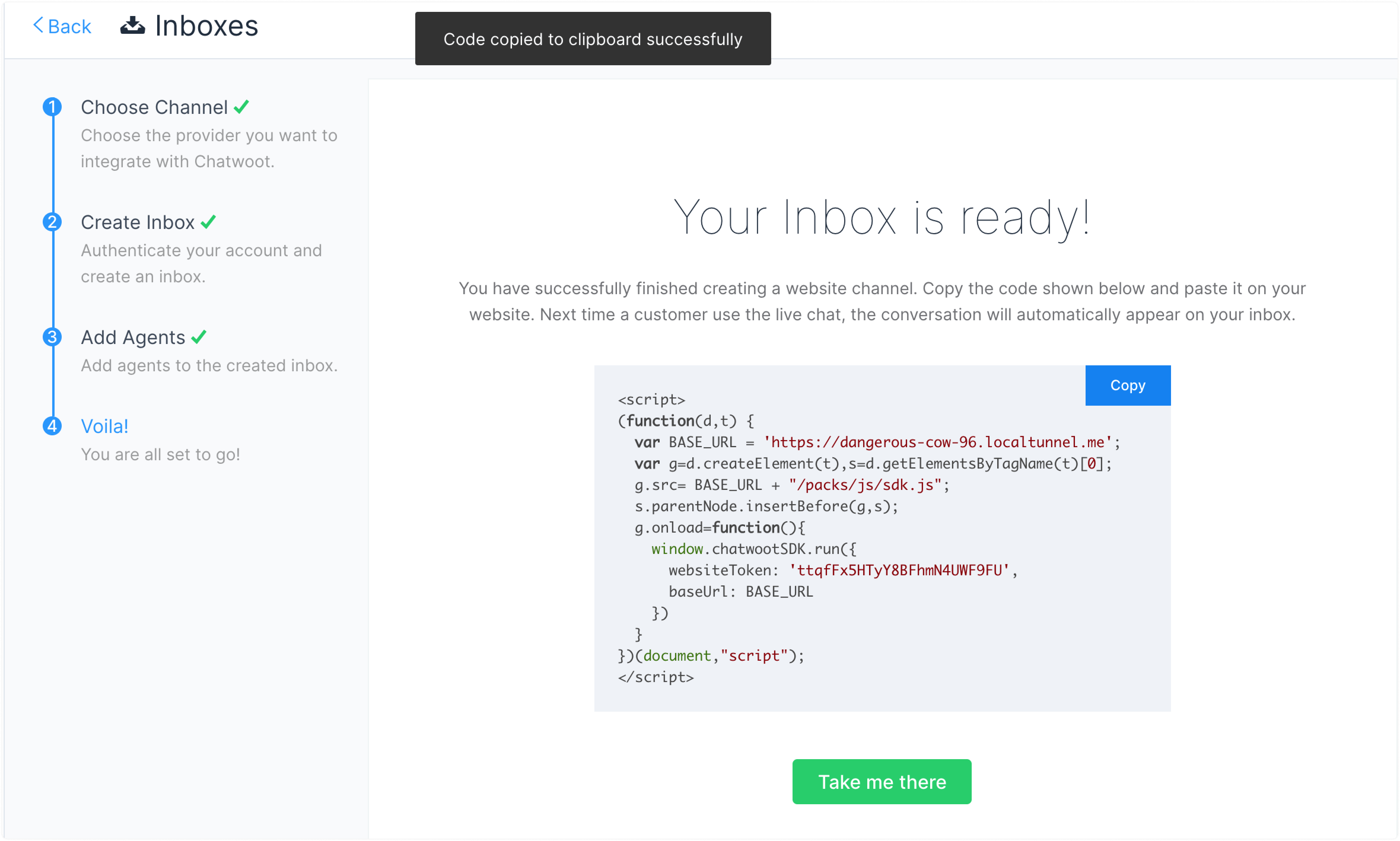
Step 3. Paste the script here
Open your Vue project and paste the script into the index.html file, right before the closing </body> tag.
<body>
  <noscript>
    <strong
      >We're sorry but <%= htmlWebpackPlugin.options.title %> doesn't work
      properly without JavaScript enabled. Please enable it to continue.</strong
    >
  </noscript>
  <div id="app"></div>
  <!-- built files will be auto injected -->

  <!-- Chatwoot script goes here -->
  <script>
    (function (d, t) {
      var BASE_URL = "https://example.com";
      var g = d.createElement(t),
        s = d.getElementsByTagName(t)[0];
      g.src = BASE_URL + "/packs/js/sdk.js";
      g.defer = true;
      g.async = true;
      s.parentNode.insertBefore(g, s);
      g.onload = function () {
        window.chatwootSDK.run({
          websiteToken: "yZ7USzaEs7hrwUAHLGwjbxJ1",
          baseUrl: BASE_URL,
        });
      };
    })(document, "script");
  </script>
  <!-- Chatwoot script goes here -->
</body>
Step 4. Check
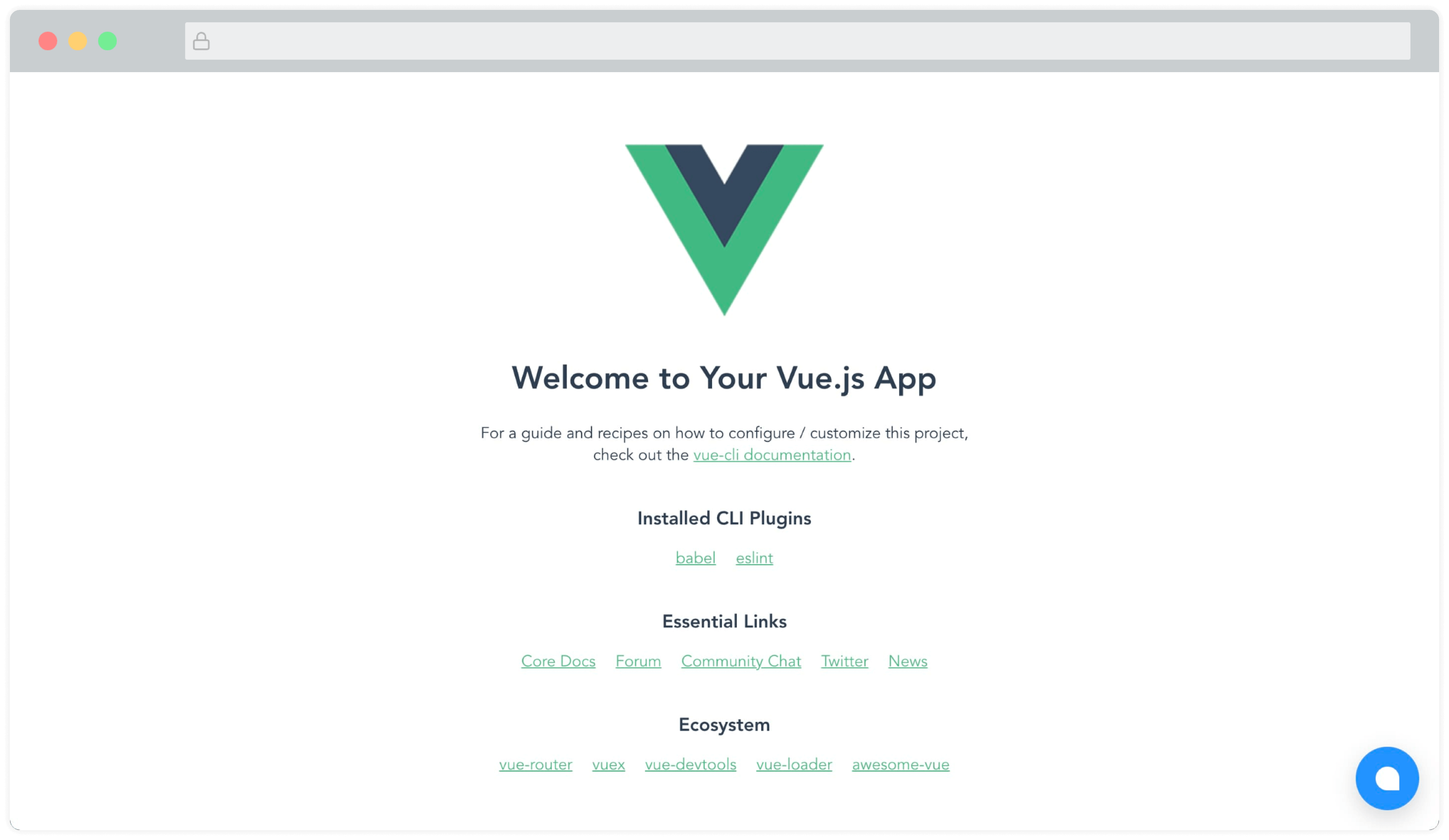
You will be able to see the Voxys Connect widget on the page now. Something like this:
Vue.js, Nuxt.js module
A community-maintained module (Made by the awesome folks at @huntersofbook) for integrating Voxys Connect in your Vue 3 and Nuxt 3 projects is available. You can find a demo here.
- View Vue 3 module.
- View Nuxt 3 module.