You can filter your conversations using different criteria. You can also use "AND" and "OR" operators to further refine your search.
The available filters are listed below.
- Conversation Status
- Agent Assigned
- Inbox
- Team
- Conversation Identifier
- Labels
- Campaigns
- Created at
- Last activity
- Browser Language
- Country
- Referrer Links
- Custom attributes added to your account.
How to filter conversations?
To filter your conversations, follow the following steps.
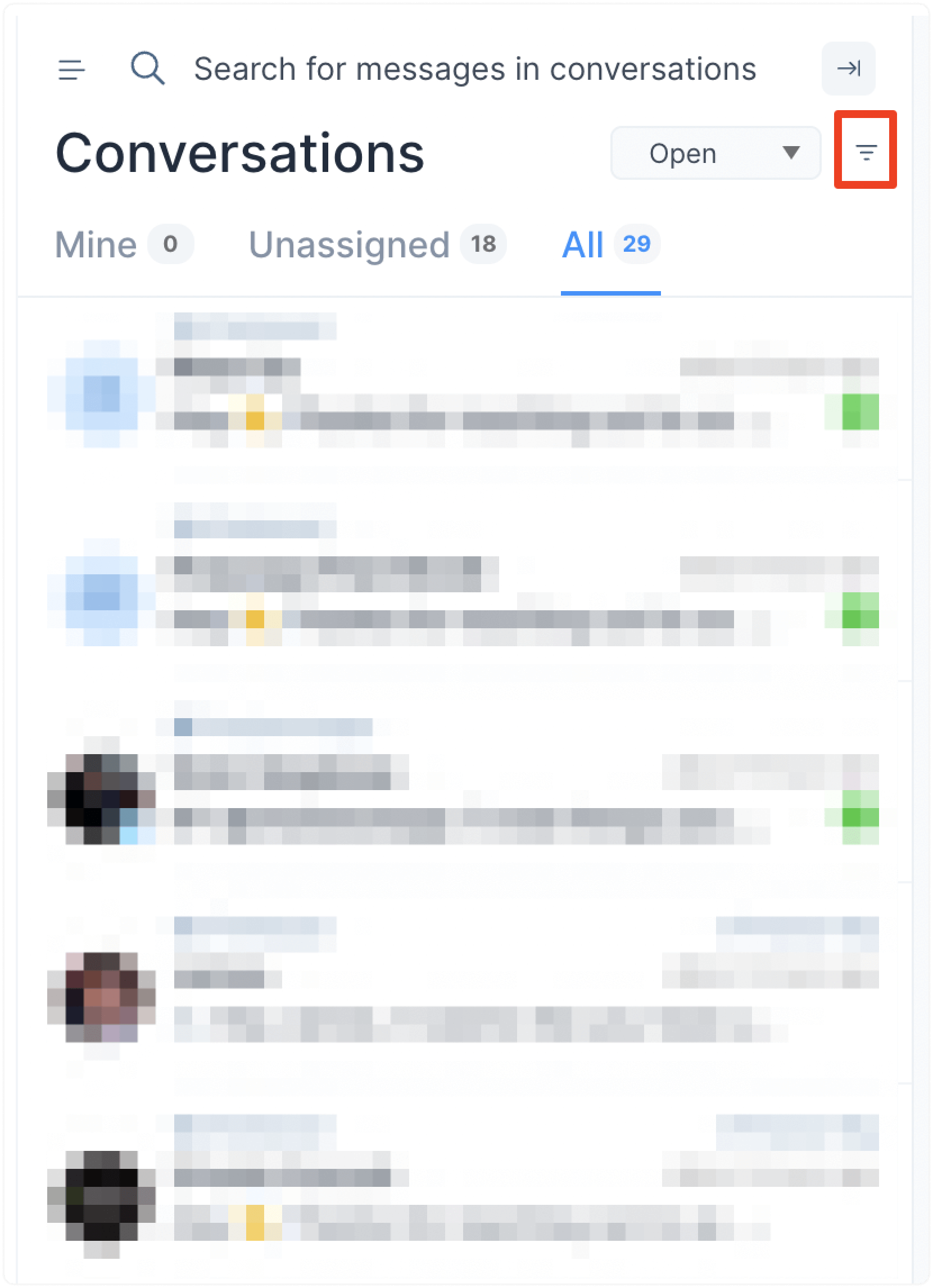
Step 1. Click on the filter icon at the top of the message list.
Step 2. A modal will open up, which lets you select the filter type, the operator (equal to, not equal to, present, not present) and the value. Select and apply your filters.
Example
To get all conversations "Resolved" by agent "Fayaz", set filters as described below.
- Set the filter type as "Status", the operator as "Equal to" and the value as "Resolved"
- Set the "Assignee Name" as the filter type, "Equal to" as the operator, and "Fayaz" as the value.
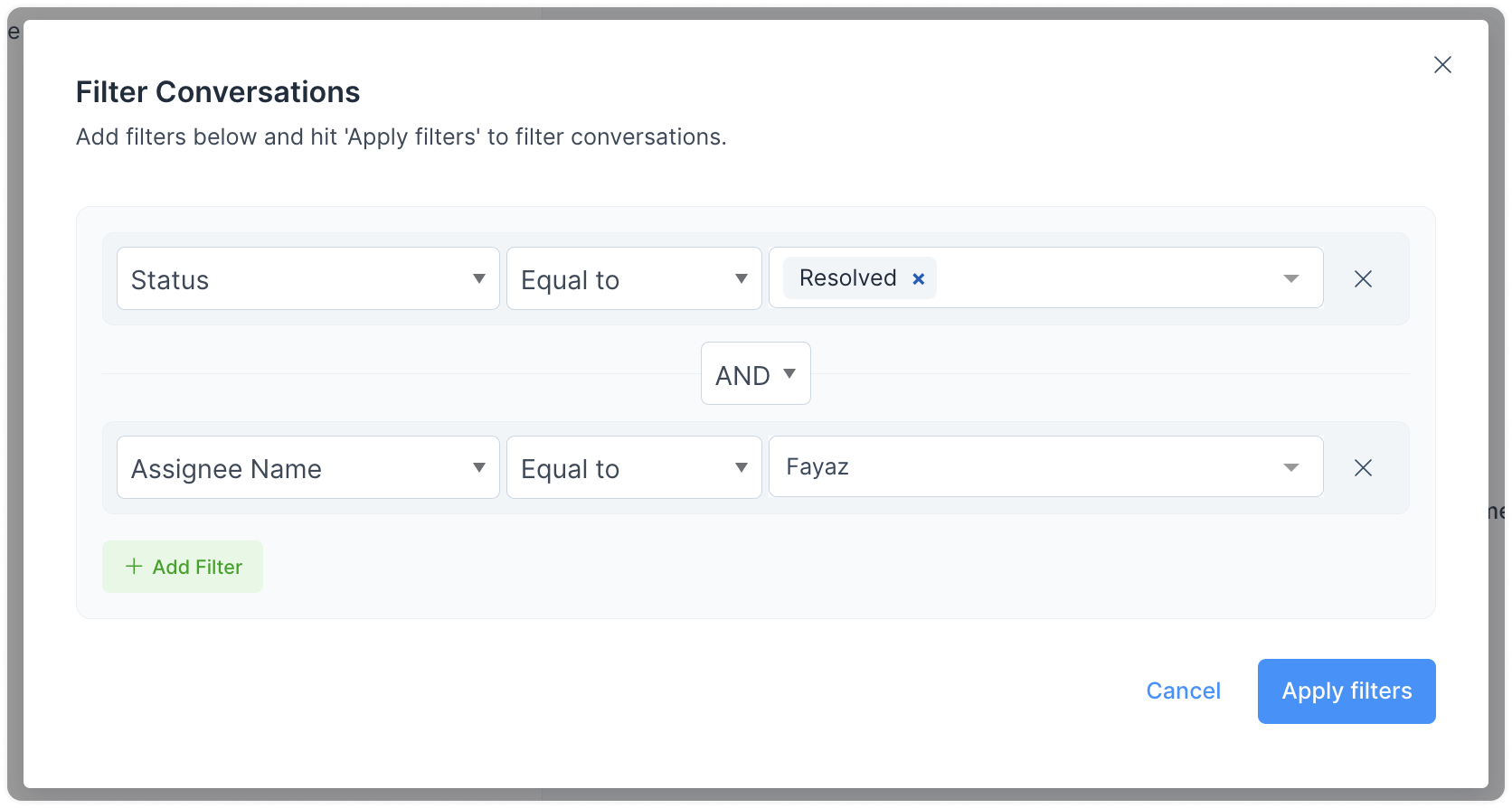 3. Hit the “Submit” button. The conversation list will now be filtered by the above criteria.
You can apply as many filters as you want by combining them with AND and OR operators to create complex queries.
Clear filters
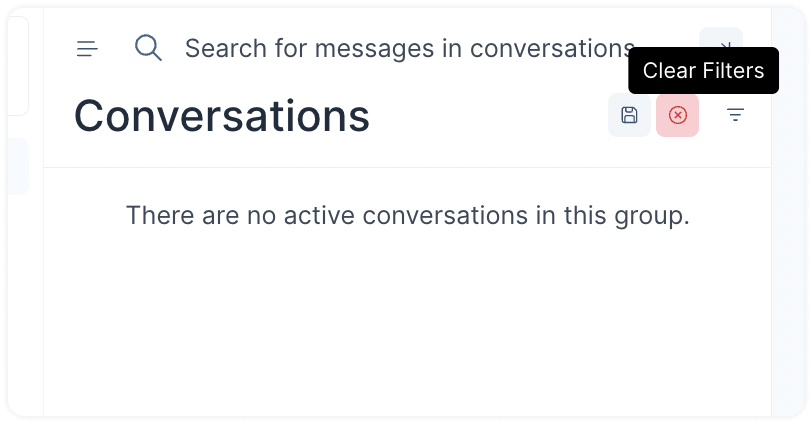
To clear the filters and go back to the original list, click on the "Clear Filters" button.