
If you're currently using Zendesk and want to switch to Voxys Connect, this guide will walk you through the step-by-step process of migrating your conversations, contacts, live chat widget, and setting up Voxys Connect. This is a very quick process; let’s dive in.
Before you begin
Before setting up Voxys Connect, there are two essential preliminary tasks to complete in order to smoothly remove Zendesk from your ecosystem.
Step 1. Remove the Zendesk chat widget
To start, please make sure to uninstall the existing live chat code that you would have previously integrated for enabling the Zendesk live chat widget on your website.
Step 2. Export contacts
Next, export all of your contacts from Zendesk, with the help of this guide.
Migrating to Voxys Connect
Step 3. Sign up
Create an account in Voxys Connect, using this guide.
Step 4. Migrate the live chat widget
Create a live chat inbox in Voxys Connect, using this guide. At the end of the setup, you will find the live chat code snippet to be pasted into your website’s codebase. Complete this step, ensuring that you have already removed the live chat code snippet for Zendesk’s live chat widget, as mentioned in Step 1.
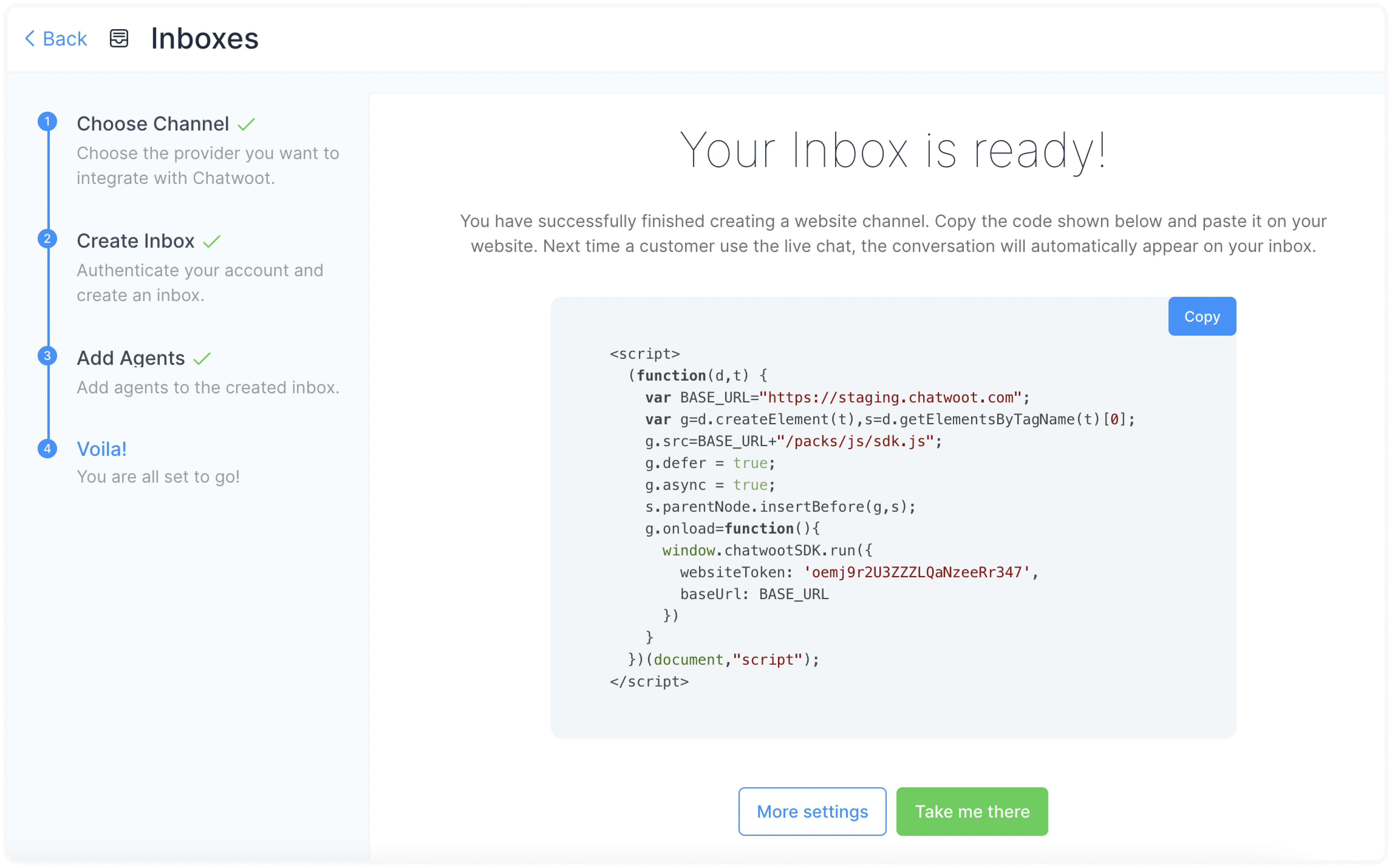
Step 5. Migrate contacts
Open the ‘Contacts’ tab in Voxys Connect, press the Import button.
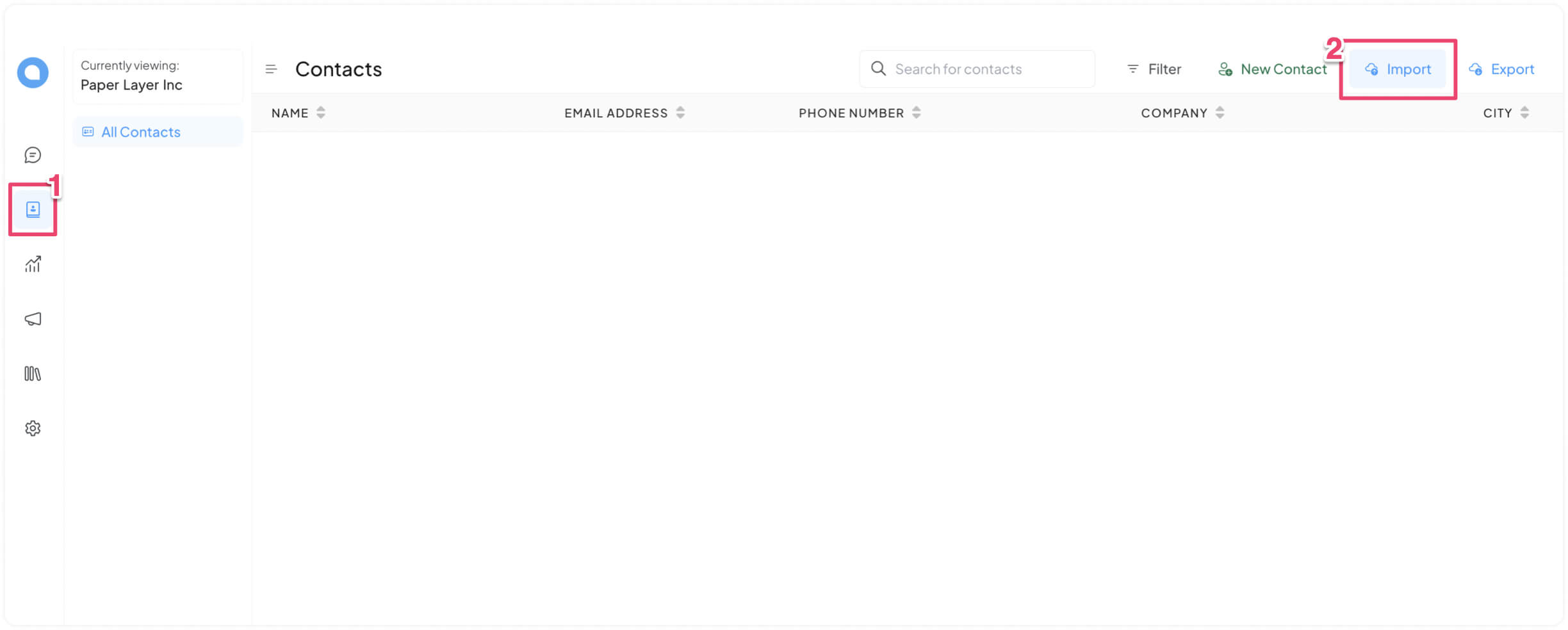
Next, follow the on-screen instructions to upload the Contacts file exported from Zendesk, in a csv format. Once your upload is completed, all of your contacts will be successfully synced in Voxys Connect.
Step 6. Migrate conversations
For importing your existing conversations from Zendesk to Voxys Connect, use this API.
Step 7. Make Voxys Connect your own
You are all set to use Voxys Connect, congratulations! We recommend the following steps to begin making the best of Voxys Connect:
Voxys Connect 101 tutorials: A comprehensive guide to learn the basics of Voxys Connect within minutes.
Omnichannel inbox: A helping hand to setting up your omnichannel customer service on Voxys Connect.
A few best practices to make your workflow smooth as butter on Voxys Connect.
For everything else, hit us up on [email protected], and don't forget to share your feedback with us. Happy chatting!